WatchList Tool - Configuring a Timed Reminder
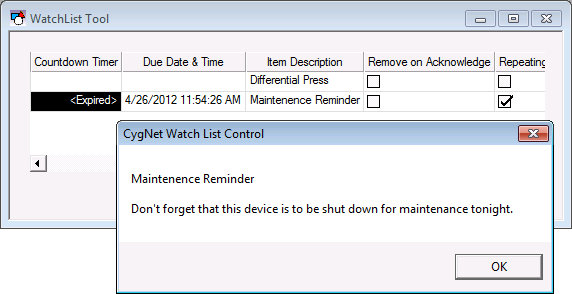
You can add multiple reminder events to the WatchList, by right-clicking on the WatchList and selecting Add Reminder from the context menu. An expired reminder can be acknowledged through the context menu. Acknowledging an expired reminder will either reset it to the next trigger date (if repeating) or stop the reminder from blinking (if it is non-repeating). It has no effect on a reminder that has not expired (i.e. you can't "pre-acknowledge" a reminder event).
The events can be exported to and imported from an XML file via script. If the WatchList contains a mixture of points and reminders, they will all be exported to the same file.
To Configure and Acknowledge a Timed Reminder
- Right-click the WatchList and select Add Reminder….
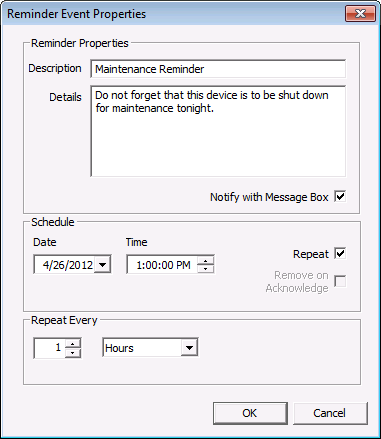
- Configure the Reminder Event Properties as desired. The settings are described below.
- Once created, the Countdown Timer column will indicate when the reminder popup will next appear, if that column is selected to be displayed in the WatchList. See Configuring Columns.
- Right-click on an existing reminder, to view the context menu options available to acknowledge, add, edit, or remove reminders. You can also update or clear points in the WatchList from the context menu.
|
Reminder Event Properties |
Reminder Properties
| Property | Description |
|---|---|
| Reminder Properties | |
|
Description |
Type a description for the reminder. The description will be displayed in the Item Description column if that column is selected to be displayed in the WatchList. See Configuring Columns. |
|
Details |
Type the details of the reminder. This text is not displayed on the WatchList column, but is displayed in the Message popup if Notify with Message Box is selected. |
|
Notify with Message Box |
Select to display the Description and Details in a Message popup. |
| Schedule | |
|
Date and Time |
Set the date and time of the reminder. The schedule for the reminder will be displayed in the Due Date, Due Date & Time, and Due Time columns if those columns are selected to be displayed in the WatchList. A Countdown Timer column is also available. |
|
Repeat |
Select to repeat the reminder at the interval listed in the Repeat Every option. A Repeating column with a check box indicating that the reminder will be repeated will be displayed if the Repeating column is included in the WatchList. |
|
Remove on Acknowledge |
If the event is non-repeating, select this option to remove the reminder from the list when acknowledged or expired. A Remove on Acknowledge column with a check box indicating the reminder will be removed when acknowledged is displayed if the Remove on Acknowledge column is included in the WatchList. |
|
Repeat Every |
Enter a repeat schedule for the reminder to be run at the intervals entered. Used in conjunction with the Repeat option. Displays when the next Event reminder will be fired off if the column is selected. |
Reminder Example
Below is an example reminder popup message that a device is going to be offline for maintenance. Click OK to close the popup, and then right-click and select Acknowledge.
|
Reminder Example |